The settings
| Setting | Value | Where in OBS |
|---|---|---|
| Resolution | 1920×1080 (or 1280×720) | Settings → Video |
| Frame rate | 30 | Settings → Video → Common FPS Values |
| Rate control | CBR | Settings → Output → Streaming |
| Bitrate | 5,000 kbps (or 3,000 at 720p) | Settings → Output → Streaming |
| Keyframe interval | 1 s | Settings → Output → Streaming |
| B-frames | 0 | Settings → Output → Streaming (depends on encoder) |
| Audio | AAC, 160 kbps | Settings → Output → Audio |
The 1-second keyframe and B-frames at 0 let Stream-Split swap a site between Live, Away and Blur faster; Cam4 and MyFreeCams ask for a 1-second keyframe anyway.
The encoder settings only appear when Output Mode (top of Settings → Output) is set to Advanced. If you use Stream-Split, the Set up OBS panel in your dashboard shows the same settings for the encoder you have.
Video and camera
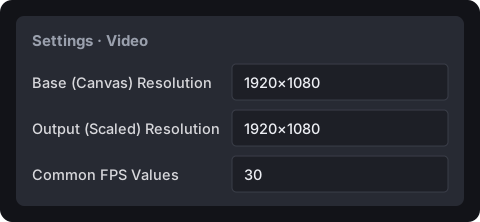
In Settings → Video, set Base (Canvas) Resolution and Output (Scaled) Resolution to 1920×1080 and Common FPS Values to 30. For 720p, set both resolutions to 1280×720.
Add your camera after this, so it fits the canvas: Sources → + → Video Capture Device → OK, pick your webcam → OK, then drag the red handles until it fills the screen. If you like, set the camera's own resolution as close to 1920×1080 as it offers. No sound? Settings → Audio → Mic/Auxiliary, and pick your microphone.
Encoder
In Settings → Output, set Output Mode to Advanced, open the Streaming tab and pick a Video Encoder. Use a hardware encoder if your Video Encoder list has one: it encodes on your graphics chip and uses far less of your processor. In order of preference: NVIDIA NVENC, Apple VT on a Mac, AMD or VA-API, QuickSync, and x264 last. Ignore any HEVC or AV1 entries.
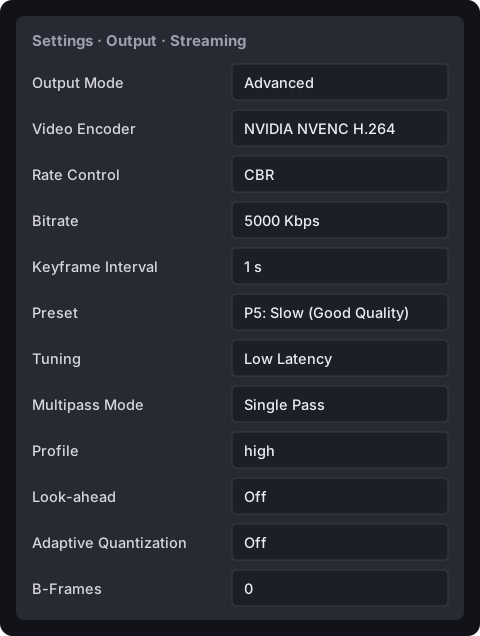
The settings that matter for your encoder, in the order OBS shows them. Anything not listed can stay at OBS's default. The bitrate in the picture and the tables is for 1080p: at 720p, set Bitrate to 3000 instead.
NVIDIA NVENC H.264
| Rate Control | CBR |
| Bitrate | 5000 Kbps |
| Keyframe Interval | 1 s |
| Preset | P5: Slow (Good Quality) |
| Tuning | Low Latency |
| Multipass Mode | Single Pass |
| Profile | high |
| Look-ahead | Off |
| Adaptive Quantization | Off |
| B-Frames | 0 |
Apple VT H264 Hardware Encoder (Mac)
| Rate Control | CBR |
| Bitrate | 5000 Kbps |
| Keyframe Interval | 1 s |
| Profile | high |
| Use B-Frames | Off (untick) |
AMD HW H.264 (AVC)
| Rate Control | CBR |
| Bitrate | 5000 Kbps |
| Keyframe Interval | 1 s |
| Preset | Quality |
| Profile | High |
| Pre-Analysis | Off |
| B-Frames | 0 (RX 6000 cards and newer; older cards don't have the setting) |
We haven't been able to check the exact name OBS uses for the B-frames setting on AMD; if it's worded differently, set it to 0.
FFmpeg VAAPI H.264 (Linux)
| VA-API Device | your graphics card, leave as it is |
| Profile | High |
| Level | Auto |
| Rate Control | CBR |
| Bitrate | 5000 Kbps |
| Keyframe Interval | 1 s |
| Max B-frames | 0 (already the default) |
QuickSync H.264 (Intel)
| Rate Control | CBR |
| Bitrate | 5000 Kbps |
| Target Usage | TU2 (quality) |
| Profile | high |
| Keyframe Interval | 1 s |
| Latency | low |
| B Frames | 0 (its default is 3) |
x264 (software, uses your processor)
| Rate Control | CBR |
| Bitrate | 5000 Kbps |
| Keyframe Interval | 1 s |
| CPU Usage Preset | veryfast |
| Profile | high |
| Tune | zerolatency |
x264 has no B-frames setting: Tune "zerolatency" turns them off for you.
Audio: the Streaming tab's Audio Track setting shows which track you stream. On the Audio tab of Settings → Output, set that track's Audio Bitrate to 160.
What each site publishes
This is what each site documents for 1080p. The number that matters is the minimum: Chaturbate's is 5,000 kbps and it flags streams below it, which is why 5,000 is the setting. A published maximum below that is a guideline rather than a hard limit; Cam4, for example, accepts 5,000 kbps in our testing.
| Site | Bitrate at 1080p | Keyframe |
|---|---|---|
| Chaturbate | 5,000-8,000 kbps | 2 s |
| Stripchat | 3,000-6,000 kbps | 2-5 s |
| CamSoda | 3,000-6,000 kbps | not published |
| BongaCams | 4,000-6,000 kbps | 2 s |
| MyFreeCams | 4,500 kbps | 1 s |
| Cam4 | 4,000 kbps | 1 s |
| OnlyFans | not published | not published |
Sources: each site's own OBS guide (Chaturbate, Stripchat, CamSoda, BongaCams, MyFreeCams, Cam4); Stripchat's keyframe range is from its broadcaster panel.
Two sites together: Chaturbate and Stripchat, Chaturbate and MyFreeCams, Chaturbate and Cam4, Stripchat and Cam4.
Check what OBS is really sending
If you stream through Stream-Split, your dashboard reads your stream while you're live and shows what OBS is actually sending, for example "your broadcast: 1920x1080 · 30fps · 5000 kbps · H.264 high · keyframe 1.0s". If your keyframe interval is over 2 seconds or B-frames are on, a Fix your OBS settings box tells you what to change and where it is in OBS.
Questions
- When should I use 720p instead of 1080p?
- When your connection can't hold 5,000 kbps: OBS reports dropped frames or the stream stutters. 720p at 3,000 kbps meets the 720p minimum each site publishes. More in fixing dropped frames.
- Can I stream at 60 fps?
- Keep 30 if you stream to more than one site. Cam4, CamSoda and BongaCams publish 30 fps as their maximum, and one feed goes to all of your sites.
- Do these settings work without Stream-Split?
- Yes, they're plain OBS settings. The only difference is the server and key in Settings → Stream: you'd use the site's own instead of Stream-Split's.