Stripchat OBS Setup: Stream Key & Settings
Go live on Stripchat from OBS through Stream-Split, and on your other cam sites at the same time. You copy one key from Stripchat, paste it into your Stream-Split dashboard, and point OBS at us.
Start free1. Copy your Stripchat stream key
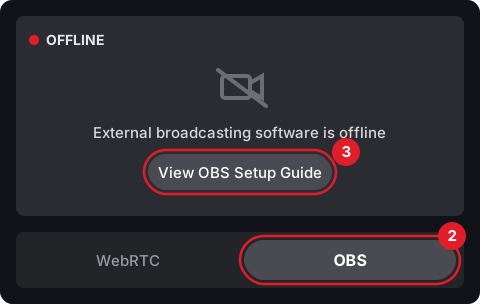
- Log into your Stripchat model account, open Broadcast Center from the menu and click Set Up Broadcast.
- Under the video preview, switch from WebRTC to OBS.
- Click View OBS Setup Guide.
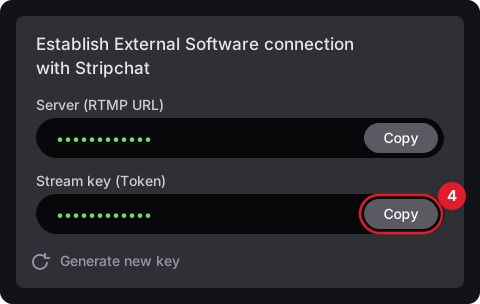
- In the popup, click Copy next to Stream key (Token). That's all you need from Stripchat.
2. Add Stripchat to your Stream-Split dashboard
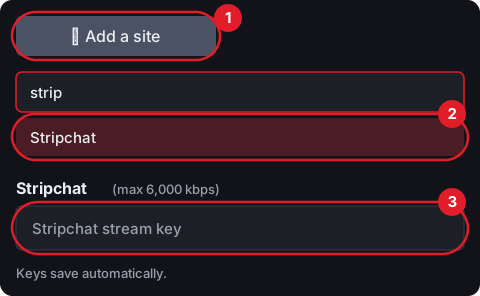
- Click + Add a site.
- Type "strip" and pick Stripchat.
- Paste your Stripchat key into the Stripchat stream key box. Keys save automatically, and Stripchat then shows up as its own row with Live, Away and Off. Stripchat only needs the key: Stream-Split already knows its server.
3. Point OBS at Stream-Split
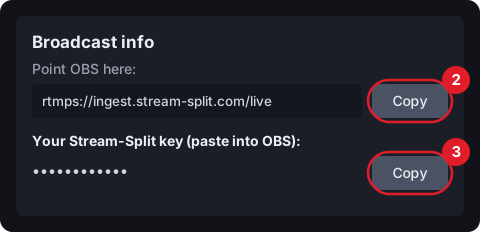
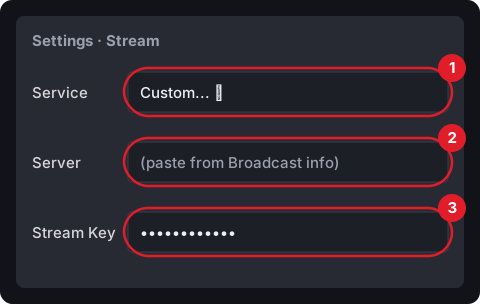
OBS gets your Stream-Split key, not the Stripchat one. The server address and your Stream-Split key are in the Broadcast info box at the top of your dashboard, each with its own Copy button, marked 2 and 3 to match the OBS steps below.
In OBS, open Settings → Stream, then:
- Set Service to Custom...
- In your dashboard, click Copy next to the server, and paste it into Server.
- Back in your dashboard, click Copy next to your Stream-Split key, and paste it into Stream Key. Click OK.
Video and encoder settings: click Set up OBS under Broadcast info. It shows the exact fields to set for your encoder: 1080p, 30 fps, 5,000 kbps CBR and a 1-second keyframe, or 720p at 3,000 kbps for a weaker connection. These settings work on every cam site, Stripchat included. The same settings, explained: OBS settings for cam streaming.
4. Go live
First choose what should happen when OBS connects, under When I start in OBS at the bottom of your dashboard. Go live everywhere sets Stripchat and your other sites to Live as soon as OBS connects. Keep all off leaves them off until you click Go Live, or set just the Stripchat row to Live.
Then click Start Streaming in OBS. Your dashboard switches to ● Live, and you go live on Stripchat as you normally would.
Stripchat alongside your other sites
Add each one from + Add a site, like Stripchat in step 2; a few sites also ask for a server address. Because the settings from Set up OBS work on every cam site, nothing changes in OBS when you add one.
Also on Chaturbate? Chaturbate and Stripchat together covers the bitrate that suits both and how each one goes live.
Taking a private on Stripchat: click ★ Solo on the Stripchat row. Stripchat stays live and your other sites go to Away or Off, whichever you've picked under When I Solo a site, others go (Away needs an away clip first). When the private ends, click Go Live to put every site back live. More in private shows while multistreaming.
Stripchat questions
- Why did Stripchat drop me in the first minute and then come back?
- Stripchat's server sometimes closes a new connection and accepts it a moment later. In most cases we've looked into, it came back by itself within 60-90 seconds on the same key, so give it a minute before changing anything. If it doesn't come back, message us from Help in your dashboard.
- I clicked Generate new key on Stripchat. What now?
- Copy the new key from Stripchat, click ⚙ Edit on the Stripchat row in your dashboard and paste it in. If you're live at the time, Stream-Split switches to the new key within a few seconds.
- Can I stream to Stripchat without Stream-Split?
- Yes. In OBS, go to Settings → Stream → Service, click Show All... and choose Stripchat, then paste the Stripchat key. OBS then holds you to Stripchat's limits (6,000 kbps video, 128 kbps audio) and sets its keyframe, profile and B-frame values, unless "Ignore streaming service setting recommendations" is ticked. That sends your stream to Stripchat only.