OnlyFans OBS Settings: Stream Key & Setup
OnlyFans keeps its OBS server and stream key under Settings → Streaming. Paste that key into Stream-Split and you can be live on OnlyFans and your cam sites from one OBS stream.
Start free1. Find your OnlyFans stream key
- Log into your OnlyFans profile and click Settings, then Streaming (1).
- Under OBS software settings, click COPY LINK under the Stream Key box (2). Leave RESET alone: it replaces your key.
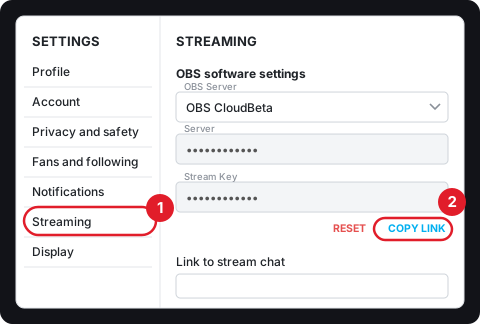
OnlyFans says OBS is fully compatible with its livestreams. Keep this page open: once you start streaming, you come back to it for Link to stream chat (step 3).
2. OnlyFans in Stream-Split (key and server), then OBS
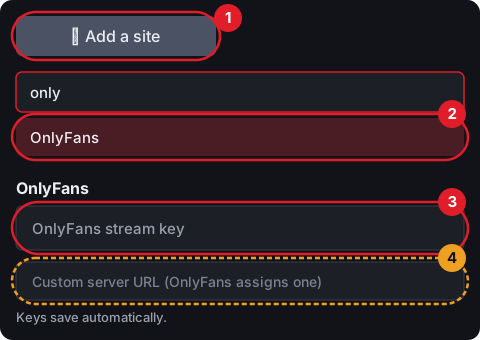
Add OnlyFans in Stream-Split: + Add a site (1), search "only", pick OnlyFans (2), and paste what you copied into OnlyFans stream key (3). Unlike most sites, OnlyFans' row has a second box, Custom server URL (4). Above the key, OnlyFans' Streaming page has an OBS Server choice with its Server address. On the default, OBS CloudBeta, leave this box empty: Stream-Split already uses that server. If your OBS Server shows anything else, copy its Server address into this box.
Connect OBS to Stream-Split
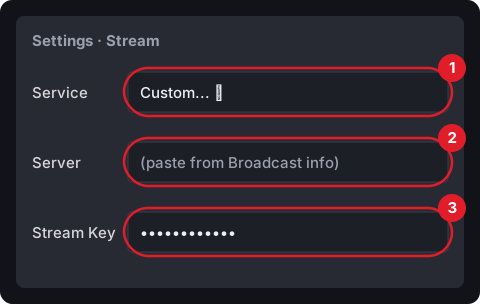
OnlyFans' blog has you choose OnlyFans.com as the OBS service; here OBS talks to Stream-Split, which forwards to OnlyFans. In OBS Settings → Stream:
- Service → Custom...
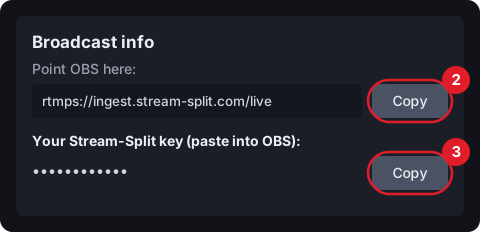
- Server → paste the address copied from your dashboard's Broadcast info.
- Stream Key → paste your Stream-Split key (not the OnlyFans one) from Broadcast info, then OK.
Settings: OnlyFans doesn't publish bitrate or keyframe figures, and in our experience it doesn't object to a higher bitrate. Use our standard settings (1080p, 30 fps, 5,000 kbps, 1-second keyframe) from Set up OBS in your dashboard or OBS settings for cam streaming.
3. Going live on OnlyFans
- Decide how OnlyFans comes on. With Go live everywhere chosen under When I start in OBS, it goes Live when OBS connects; with Keep all off, nothing reaches OnlyFans until you press Live on its row or Go Live.
- Click Start Streaming in OBS.
- Go back to your Streaming page on OnlyFans and click the URL under Link stream to chat. There you can also set a tip goal, add a description, and show or hide collected tips.
OnlyFans suggests keeping OBS and your OnlyFans window open side by side: you run the stream in OBS and answer comments on OnlyFans.
OnlyFans questions
- Where are OnlyFans' OBS settings?
- In your OnlyFans account: Settings → Streaming, under "OBS software settings". That's where your stream key is.
- What is "Link stream to chat" on OnlyFans?
- It's the step OnlyFans' guide gives after you start streaming in OBS: go back to your Streaming page and click the URL under "Link stream to chat". That's also where you set a tip goal, add a description, and show or hide collected tips.
- Can I stream to OnlyFans without Stream-Split?
- Yes. OnlyFans' own guide says to pick OnlyFans.com in OBS's Service list and paste your stream key. Note that OBS's built-in OnlyFans setting caps video at 2,500 kbps unless you tick "Ignore streaming service setting recommendations". That sends your stream to OnlyFans only.