CamSoda OBS Setup: Stream Key & Settings
CamSoda's broadcast page hands you an RTMP URL and a StreamKey for OBS. Stream-Split only needs the StreamKey: it takes your one OBS stream and passes it to CamSoda and your other cam sites together.
Start free1. Copy your CamSoda StreamKey
- Log into CamSoda and open your Broadcast page.
- Under your stream window, click Use OBS Broadcaster (2). CamSoda opens OBS Stream Settings with an RTMP URL and your StreamKey.
- Click COPY next to StreamKey (3). With Stream-Split you don't need the RTMP URL.
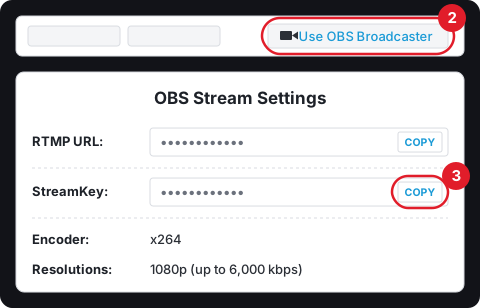
CamSoda's own warning: your key is unique to your account, so don't share it with anyone.
2. Hand the StreamKey to Stream-Split, then set up OBS
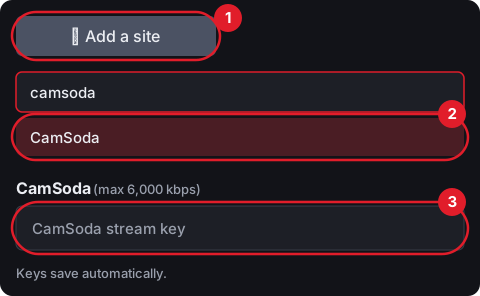
Back in Stream-Split, click + Add a site (1), start typing "camsoda" and pick CamSoda from the list (2). The StreamKey goes in the box labelled CamSoda stream key (3); there's no save button, it's stored as you paste. CamSoda's RTMP URL stays behind: Stream-Split has CamSoda's server built in.
Point OBS at Stream-Split, not CamSoda
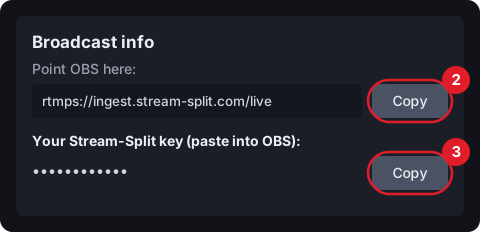
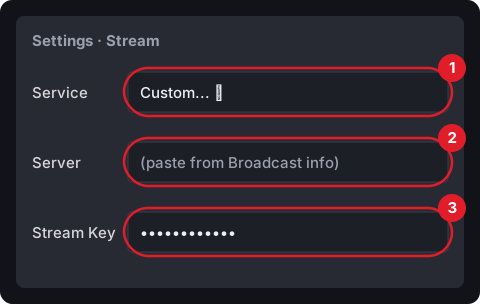
This is the one place OBS comes in, and CamSoda's StreamKey never goes into it. Open OBS's Settings and the Stream tab:
- Service: pick Custom... (not the CamSoda entry in OBS's list).
- Server: the address from your dashboard's Broadcast info box. Its first Copy button copies it.
- Stream Key: your Stream-Split key, from the second Copy button in that box. OK saves it.
What CamSoda asks for, and what to set
CamSoda recommends a 16:9 picture at 24-30 fps, 3,000-6,000 kbps at 1080p (1,500-4,000 at 720p) and 160 kbps audio; its OBS Stream Settings box lists the same caps: 1080p up to 6,000 kbps, 720p up to 4,000, 480p up to 2,000. Our standard settings sit inside all of that: 1080p, 30 fps, 5,000 kbps, and 160 kbps audio, exactly the audio figure CamSoda suggests. CamSoda's OBS guide doesn't give a keyframe interval; we use 1 second, which lets Stream-Split swap a site between Live, Away and Blur faster. Where each setting lives in OBS: OBS settings for cam streaming, or the Set up OBS panel in your dashboard.
3. Going live on CamSoda
Once your stream reaches CamSoda, the red offline Stream Status on your CamSoda page turns green: you're online. With Stream-Split, the CamSoda row in your dashboard decides what CamSoda gets: Live sends your stream, Away sends your away clip, Off sends nothing.
CamSoda's guide lists no extra start button for OBS: the status turns online when video arrives. To warm up first, set When I start in OBS (bottom of your dashboard) to Keep all off: OBS connects, CamSoda stays offline, and it goes online the moment you press Live on its row. Go live everywhere skips that and puts CamSoda online with your other sites as soon as you click Start Streaming in OBS.
Seeing yourself while you stream, as CamSoda suggests: in OBS Settings → General, tick Make projectors always on top and click OK, then right-click the preview and choose Open Preview Projector → New window. If your camera doesn't fill the picture, right-click it and use Transform → Fit to screen.
CamSoda questions
- Do I need CamSoda's stream server?
- No. CamSoda shows an RTMP URL and a StreamKey under Use OBS Broadcaster, but Stream-Split already knows CamSoda's server, so you only copy the key.
- Can I stream to CamSoda without Stream-Split?
- Yes. CamSoda's guide says to pick the CamSoda service in OBS's Stream settings, choose your server area and paste your StreamKey, or to choose Custom and enter the RTMP URL and StreamKey. That sends your stream to CamSoda only.
- Does the 5,000 kbps minimum that Chaturbate sets work on CamSoda?
- Yes. At 1080p, CamSoda recommends 3,000-6,000 kbps, so 5,000 sits inside its range and one stream suits both.