Cam4 OBS Setup: Stream Key & Settings
Cam4 gives you a stream key from its Broadcast window once you pick External Encoder. Put that key in Stream-Split and one OBS stream covers Cam4 plus your other cam sites.
Start free1. Get your Cam4 stream key
- Open the Broadcast window on Cam4.
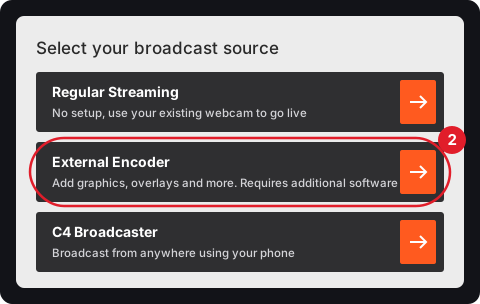
- Under Select your broadcast source, choose External Encoder.
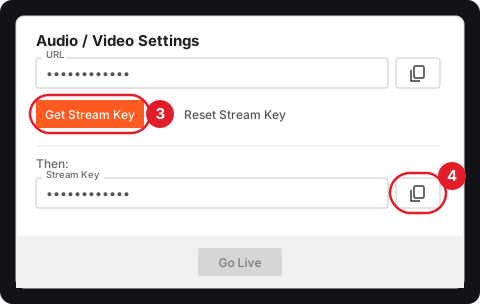
- Under Audio / Video Settings, click Get Stream Key. (Leave Reset Stream Key alone: it replaces your key.)
- Click the copy button next to the Stream Key that appears.
Cam4 also warns that a phishing campaign pushes fake OBS downloads: only install OBS from the official site, obsproject.com. And the first time you open OBS, Cam4's guide says to click Cancel when OBS offers to auto-configure itself.
2. Save the key in Stream-Split, connect OBS
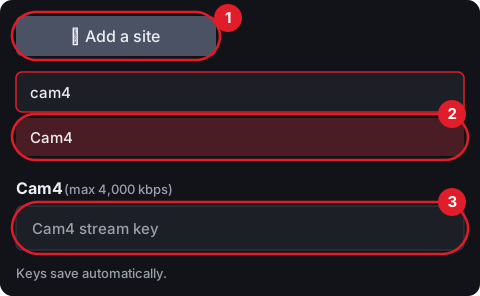
Over in Stream-Split, + Add a site (1) opens a search: type "cam4" and click Cam4 (2). The key goes into the Cam4 stream key field (3), which saves itself. You can ignore Cam4's URL field; Stream-Split already has it.
OBS connects to Stream-Split
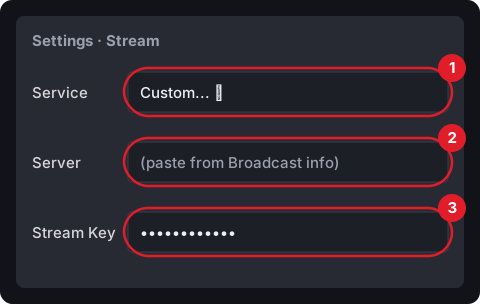
Cam4's guide has you pick CAM4 from OBS's service list; with Stream-Split you use a custom server instead. In OBS, Settings → Stream:
- Choose Custom... as the Service.
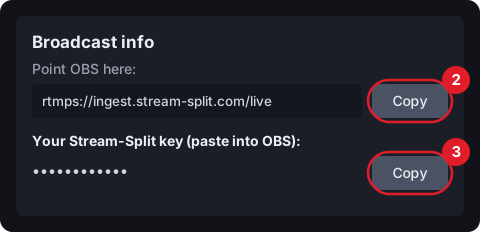
- For Server, use the Copy button beside the address in Broadcast info and paste.
- For Stream Key, copy your Stream-Split key from that same box, paste, and click OK.
Cam4's numbers, and what to set
Cam4 recommends a resolution for your upload speed:
| Your upload | Resolution | Cam4's bitrate |
|---|---|---|
| Over 9 Mbit/s | 1920×1080 | 4,000 kbps |
| 5-9 Mbit/s | 1280×720 | 3,000 kbps |
| 3-5 Mbit/s | 960×720 | 2,500 kbps |
| 2-3 Mbit/s | 800×600 | 2,000 kbps |
| Under 2 Mbit/s | 640×480 | 1,000 kbps |
Cam4 asks for a 1-second keyframe, which is exactly what we use, plus 30 fps, CBR and no B-frames. Its table stops at 4,000 kbps for 1080p, but Cam4 accepts our standard 5,000 in our testing, so one stream at 1080p and 5,000 kbps also suits sites like Chaturbate that need at least 5,000. Cam4's guide suggests the "main" profile; our settings use "high", and Cam4 has accepted High-profile streams through Stream-Split. Everything else: OBS settings for cam streaming.
Running Cam4 with another site: Chaturbate and Cam4, Stripchat and Cam4.
3. Going live on Cam4
- Set OBS up from Set up OBS in your dashboard if you haven't yet. Its settings already use the 1-second keyframe Cam4 asks for, and it covers adding your camera.
- Put Cam4 on Live, by hand from its row or automatically: Go live everywhere, in the When I start in OBS setting, flips it the moment OBS connects. While the row is on Off, Cam4 receives nothing.
- Click Start Streaming in OBS.
- Cam4 has its own start button: open the Broadcast window on Cam4, select External Encoder and click Go Live at the bottom of the window (Cam4's guide calls this step Start Broadcast).
Cam4 questions
- Cam4 says 4,000 kbps at 1080p. Should I lower my bitrate?
- Not if you also stream to a site like Chaturbate that needs at least 5,000 at 1080p. One stream goes to every site, and Cam4 accepts 5,000 in our testing. On Cam4 alone, its own figure of 4,000 is fine.
- I started OBS but I'm not live on Cam4. Why?
- Cam4 also needs Go Live (Start Broadcast) in its Broadcast window, with External Encoder selected. Check too that the Cam4 row in your dashboard is set to Live.
- Can I stream to Cam4 without Stream-Split?
- Yes. In OBS, Settings → Stream → Service, click Show All... and choose CAM4, set Server to CAM4, then paste the Cam4 key. That sends your stream to Cam4 only.