BongaCams OBS Setup: Stream Key & Settings
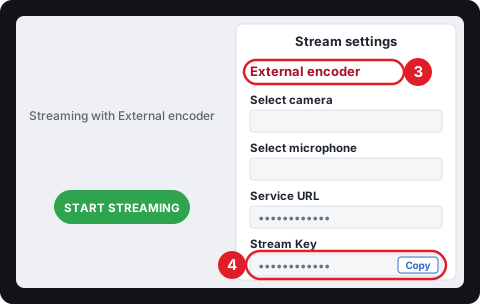
BongaModels keeps your stream key in the streaming console's Stream settings panel, shown once you choose External encoder. Copy it into Stream-Split once, and your OBS stream reaches BongaCams and your other cam sites at the same time.
Start free1. Get the key from the BongaModels console
- In your BongaModels.com model account, click Start broadcasting in the left menu. The streaming console opens.
- BongaCams asks to use your camera at the top of the console: click Allow.
- In the Stream settings panel, select External encoder.
- Copy the value in the Stream Key field: click Copy next to it.
2. BongaCams in your Stream-Split dashboard, and OBS
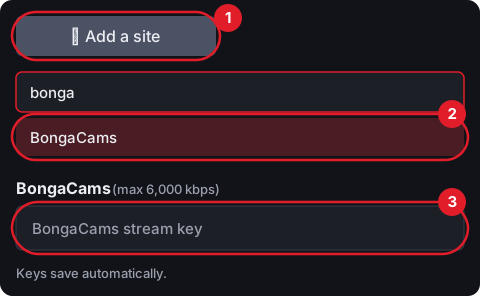
In the Stream-Split dashboard, open + Add a site (1), search "bonga" and select BongaCams (2). Paste into the BongaCams stream key box (3) and you're finished with BongaModels' details: the Service URL it shows isn't needed, and the key is stored automatically.
Now send OBS to Stream-Split
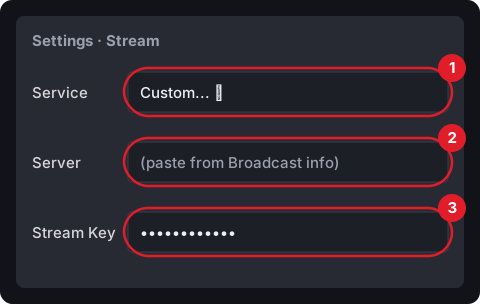
BongaCams' guide would have you choose BongaCams as OBS's service. Skip that: in OBS, go to Settings → Stream and fill in Stream-Split's details instead.
- Change Service to Custom...
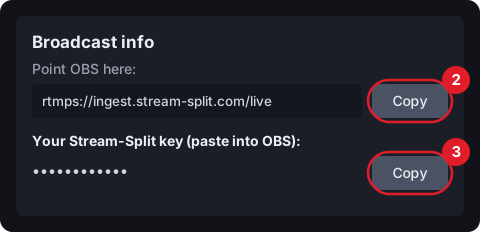
- Under Server, paste the address you copy from Broadcast info in your dashboard.
- Under Stream Key, paste your Stream-Split key (Broadcast info's second Copy button), then press OK.
What BongaCams asks for, and your upload
BongaCams recommends 30 fps, 4,000-6,000 kbps at 1080p or 2,000-3,000 at 720p, B-frames at 0, and a resolution no higher than your camera supports. Our standard 1080p at 5,000 kbps sits in the middle of its 1080p range, and our 720p setting of 3,000 kbps is the top of its 720p range. BongaCams asks for a 2-second keyframe; we use 1 second, which lets Stream-Split swap a site between Live, Away and Blur faster.
BongaCams also lists the minimum upload speed you need: at least 2 Mbps for 480p, 5 Mbps for 720p and 10 Mbps for 1080p. With Stream-Split that's one upload in total, however many sites you add. All settings: OBS settings for cam streaming.
3. Going live on BongaCams
- Get the BongaCams row onto Live: press its Live button, or pick Go live everywhere in the dashboard's When I start in OBS setting so it happens on connect.
- Click Start Streaming in OBS.
- Then the step BongaCams adds: back in the BongaModels console, press its green START STREAMING button.
While you use OBS, the BongaModels console doesn't show your video. To watch yourself, BongaCams suggests OBS's projector: in OBS Settings → General, under Projectors, tick Make projectors always on top and click OK, then right-click the preview and choose Open Preview Projector → New window.
BongaCams questions
- Why can't I see my video in the BongaModels console?
- BongaCams doesn't show the stream window when you broadcast from OBS. Use OBS's preview projector to watch yourself instead.
- I started OBS but I'm not live on BongaCams. Why?
- BongaCams also needs you to click Start streaming in its own console. Check too that the BongaCams row in your dashboard is set to Live.
- Can I stream to BongaCams without Stream-Split?
- Yes. In OBS, Settings → Stream → Service, click Show All... and choose BongaCams, then paste the BongaCams key. That sends your stream to BongaCams only.