MyFreeCams OBS Setup: Stream Key & Settings
MyFreeCams' Model Web Broadcaster has a Stream Key & URL link under its External Broadcaster option. Only the key goes into Stream-Split, and from there your OBS stream reaches MFC and the rest of your cam sites.
Start free1. Copy your MFC stream key
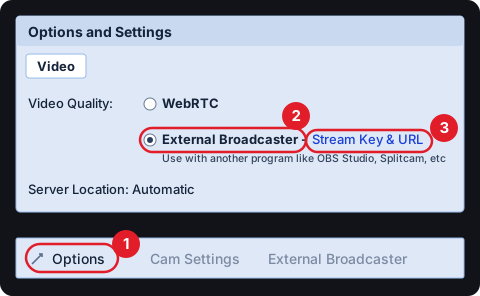
- In the Model Web Broadcaster (ModelWeb), click Options in the bottom-left corner.
- On the Video tab, under Video Quality, choose External Broadcaster instead of WebRTC.
- Click Stream Key & URL next to it.
- Click Copy next to Stream Key. Close that window, and if you switched to External Broadcaster in step 2, click Save in Options and Settings.
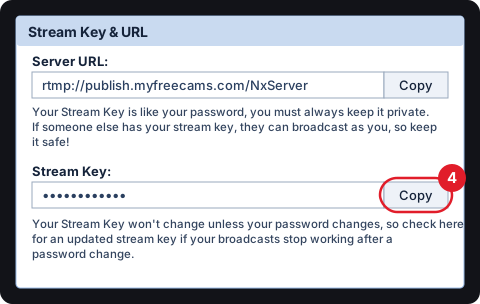
Your MFC key follows your password. MyFreeCams links the stream key to your model account's password, so if you change your password, or Model Support resets it, you get a new key. If your MFC broadcast stops working after a password change, copy the new key from the same window.
2. Put the MFC key in Stream-Split and connect OBS
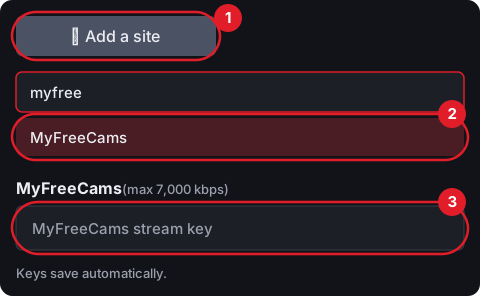
Next, Stream-Split: + Add a site (1), type "myfree" and select MyFreeCams (2), then paste your MFC key into MyFreeCams stream key (3). Nothing to save or submit. MFC's Server URL stays in ModelWeb: Stream-Split connects to it for you.
Then point OBS at Stream-Split
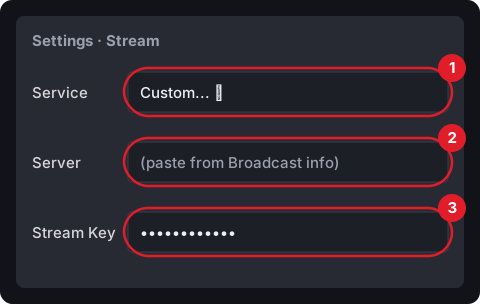
MFC's key stays out of OBS. Under OBS Settings → Stream:
- Service: Custom...
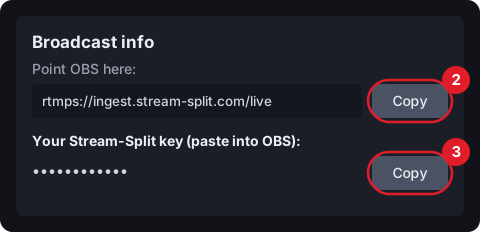
- Server: copy it from Broadcast info in your dashboard.
- Stream Key: your Stream-Split key, copied from the same Broadcast info box. Confirm with OK.
Settings: MyFreeCams suggests 4,500 kbps at 1080p or 3,000 at 720p, 30 fps and 160 kbps audio. Our standard settings fit: 30 fps, 160 kbps audio and a 1-second keyframe, which is what MFC asks for. If MyFreeCams is your only site, your dashboard's Set up OBS panel tells you to send 4,500 kbps or higher. Details: OBS settings for cam streaming. Also on Chaturbate? Its 5,000 kbps minimum decides the bitrate: Chaturbate and MyFreeCams together.
3. Going live, and seeing yourself in ModelWeb
In your dashboard, choose what happens when OBS connects under When I start in OBS: Go live everywhere, or Keep all off until you set the MyFreeCams row (or all sites) to Live. Then click Start Streaming in OBS. Before a stream reaches MFC, ModelWeb says "Not Broadcasting - Start streaming in OBS Studio"; once it does, MyFreeCams shows LIVE. From then on the MyFreeCams row decides what MFC gets: Live, Away or Off. MFC lets you stay on OBS for free chat as well as private, group and club shows; when a private starts, ★ Solo on the MyFreeCams row keeps MFC live and moves your other sites to Away or Off.
With an external broadcaster, ModelWeb's video preview is off by default. To see yourself there, click Start Virtual Camera in OBS, then Preview in ModelWeb's bottom bar; if another camera shows, open Cam Settings and choose OBS Virtual Camera.
MyFreeCams questions
- My MFC broadcast stopped working after I changed my password. Why?
- Your MFC stream key changed with it. Copy the new key from Options → Stream Key & URL, click ⚙ Edit on the MyFreeCams row in your dashboard and paste it in.
- Do I need the Server URL from MyFreeCams?
- No. Stream-Split already sends to MFC's server, so you only copy the stream key.
- Can I stream to MyFreeCams without Stream-Split?
- Yes. In OBS, Settings → Stream → Service, click Show All... and choose MyFreeCams, then paste the MFC key. MFC's own advice is to leave the Server as it is unless you have problems. That sends your stream to MyFreeCams only.