Home › Comparison
Stream-Split vs multistreaming locally in OBS
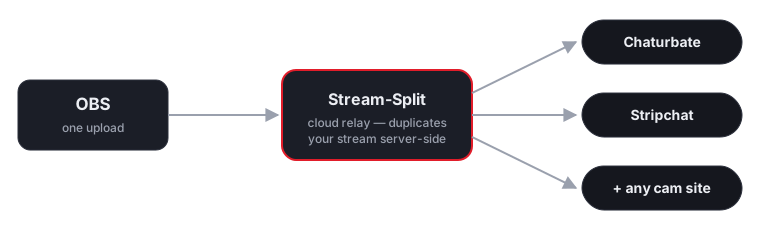
There are two ways to go live on several cam sites at once: push a separate stream to each one from OBS on your own PC, or send one stream to a cloud service that fans it out. Here's how they compare.
| Multistreaming locally in OBS | Stream-Split (cloud) | |
|---|---|---|
| Your computer's CPU load | Each extra site is another full upload, and often another encode | Encodes once, no matter how many sites |
| Upload bandwidth | Uploads a full stream per site — multiplies your upload | Uploads one stream; we duplicate in the cloud |
| Stream quality | Often lowered to fit the extra encodes/upload | Full quality, arriving unchanged at every site |
| Weak / distant connection | Needs upload for every site at once | Needs upload for one stream, sent to our nearest server |
| Setup | OBS plugins or multiple OBS instances to configure | Add a stream key per site in one dashboard |
| Per-site control | Each site is started and stopped separately, and there's no Away option | Live / Away / Off per site with one click |
| Number of sites | Limited by your PC and upload | Add as many as you want — load stays flat |
| Cost | Free, but costs you CPU, heat and bandwidth | Free |
The short version: local multistreaming is fine for one or two destinations, but every site you add taxes your CPU and upload. A cloud service keeps your machine's load flat no matter how many platforms you broadcast to.
What about local splitter apps and OBS plugins?
The other way to multistream is software on your own PC — a desktop splitter app or an OBS multi-output plugin. They work, and for one or two sites on a strong connection they can be enough. But the costs sit on your machine: every added site is either another full encode (CPU/GPU) or another full upload (bandwidth), and usually both. One platform can lag while the others are fine, because each outgoing connection depends on your PC's route to that specific site. And when a local app crashes or updates mid-show, every room drops at once.
A cloud service moves all of that server-side: your PC does one encode and one upload. Your stream makes one short hop to our nearest server, and from there each site gets its own connection, so a problem on one is visible per-site in the dashboard instead of taking the whole broadcast down. The trade-off is trusting a service with your stream keys — which is also what it needs to reconnect a dropped site for you.
FAQ
- Is it better to multistream from OBS directly or use a cloud service?
- For one or two destinations on a strong PC and connection, OBS can manage. Once you add more sites, local multistreaming multiplies your upload, and often your CPU, for each one, so a service like Stream-Split scales far better — your machine only ever sends one stream.
- Does cloud multistreaming reduce my quality?
- No. We forward your stream unchanged, so each platform gets the same resolution and bitrate you send from OBS. Local multistreaming is more likely to cost quality, because you often have to lower settings to fit the extra encodes.
New here? Read cam splitting on different cam sites or jump to Chaturbate, Stripchat or Cam4.